
Add Staff Accounts on Autodots – Easy Guide
As your garage business grows, handling everything alone becomes difficult. From managing customers to handling bookings and operations, you need a team to support you.
That’s why it is important to add staff accounts on Autodots so your team can access the dashboard and help with daily work.
In this guide, you will learn step by step how to add staff accounts on Autodots, manage permissions, and control who can access different parts of your system.
Table of Contents
What is Users and Permissions Section?
The Users and Permissions section is where you manage all staff members who have access to your garage dashboard.
From this section, you can easily add staff accounts on Autodots, update their permissions, and manage access.
This feature helps you keep your operations organized and secure.
Owner Access and Control
The garage owner always has full access to the dashboard. This access cannot be changed or removed.
Even when you add staff accounts on Autodots, the owner will always have complete control over all settings and data.
This ensures your business remains safe and under your control at all times.
Managing Existing Staff Members
In the Users section, you can see a list of all staff members who already have access.
You can also use the search option to quickly find any staff member.
To properly add staff accounts on Autodots and manage your team, you should regularly review this list and keep it updated.
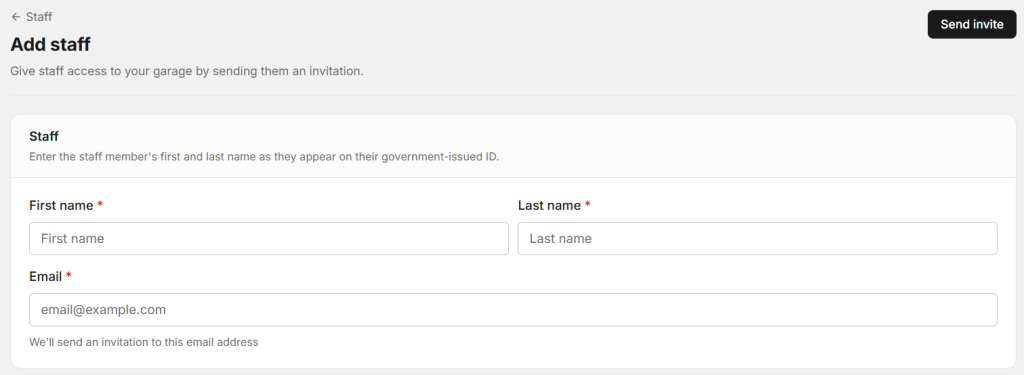
Steps to Add New Staff
Follow these simple steps to add staff accounts on Autodots:
- Go to Users and Permissions section
- Click on “Add Staff”
- Enter First Name and Last Name
- Add Email address
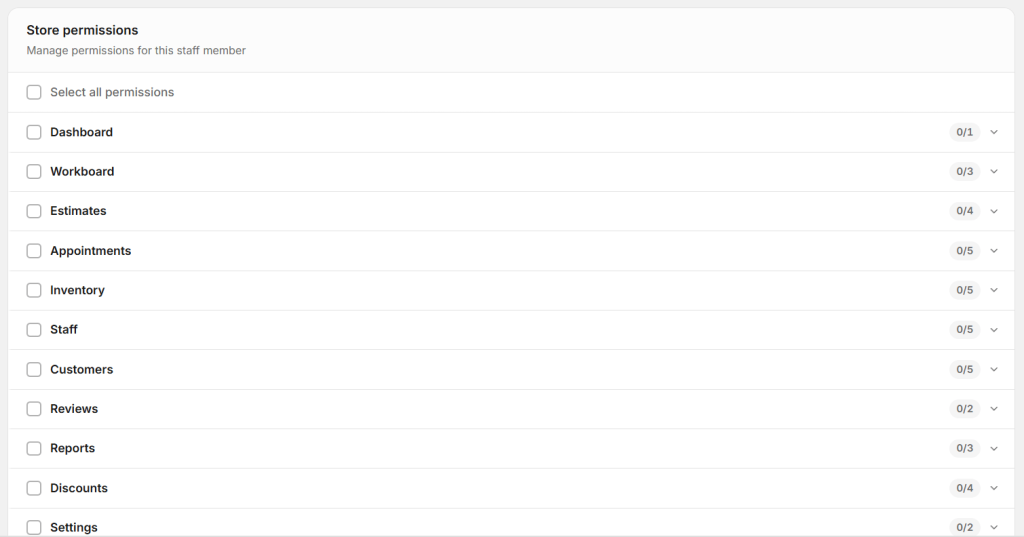
- Select permissions
- Click on “Send Invite”
This process is simple and allows you to quickly add staff accounts on Autodots without any confusion.
How Staff Invitation Works
After clicking on “Send Invite”, the system sends an email invitation to the staff member.
The staff member can open the email, accept the invitation, and log in to the dashboard.
Once logged in, they can start working based on the permissions you have given.
This completes the process to add staff accounts on Autodots and bring your team onboard.
Understanding Permissions
Permissions decide what each staff member can see and do inside the dashboard.
When you add staff accounts on Autodots, selecting the right permissions is very important.
You can control access to:
- Dashboard overview
- Appointments
- Customers
- Inventory
- Reports
👉 Simple rule: The permissions you give decide what access the staff gets.
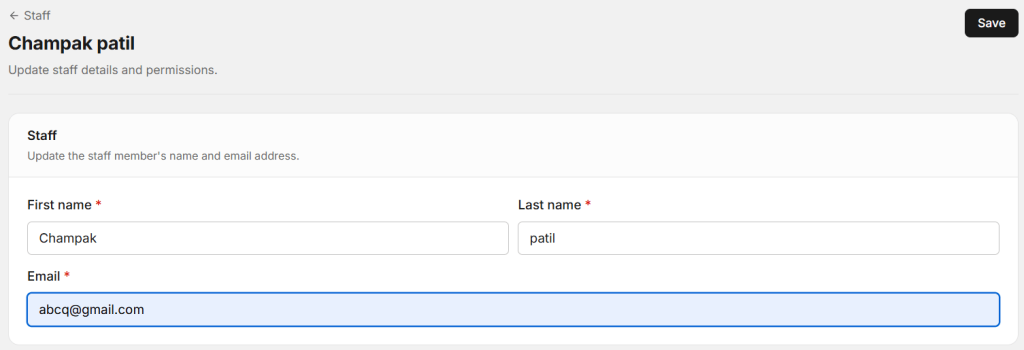
Why Permissions Are Important
When you properly add staff accounts on Autodots with correct permissions, your system becomes more secure.
Not every staff member needs full access. Giving the right access helps avoid mistakes.
For example:
- Front desk → manage appointments
- Technician → update jobs
- Manager → handle full operations
Best Practices for Staff Management
1. Give Only Required Access
Always assign permissions based on the role of the staff member.
2. Keep Staff List Updated
Remove access for staff who are no longer working with you.
3. Use Clear Names
This helps you identify who is responsible for each task.
Following these steps helps you better add staff accounts on Autodots and manage your team effectively.
Common Mistakes to Avoid
- Giving full access to all staff
- Not updating permissions
- Sharing one login with multiple users
Avoid these mistakes when you add staff accounts on Autodots.
Register Your Garage Free on AutoDots — autodots.io/partners
How This Helps Your Business
When you correctly add staff accounts on Autodots, your business operations become faster and more organized.
Your team can handle multiple tasks at the same time, which improves efficiency and saves time.
It also improves customer experience because work gets done faster and more smoothly.
Summary
Now you understand how to add staff accounts on Autodots step by step.
Go to Users section, add staff details, assign permissions, and send invite.
Managing your team properly will help your garage grow faster and run more smoothly.
Start now : Dashboard → Users → Add Staff → Send Invite
Start using Autodots for free and grow your garage faster
👉 autodots.io/partners
Looking to grow your garage business?
Want to learn more?
- How to Create a One-Click Invoice with AutoDots — The Fastest Way to Get Paid in 2026
- How to Create Estimates & Quotes with Autodots: Complete Guide for Garage Owners (2026)
- How to Add Products in Autodots Garage Management: Complete Guide (2026)
- How to Manage Parts Inventory with Autodots: Complete Guide for Garage Owners (2026)
- How to Set Up Vehicle Passport for Customers with Autodots: Complete Guide (2026)
- How to Accept Online Bookings with Autodots: Complete Guide for Garage Owners (2026)
- How to Manage Digital Job Cards with Autodots: Complete Guide for Garage Owners (2026)