
How to Create a One-Click Invoice with AutoDots — Complete Guide for Garage Owners
Creating invoices manually takes time — time that garage owners simply cannot afford to waste. With one click invoice AutoDots feature, you can convert a completed job card into a professional invoice in literally one click — and send it to your customer via Email or SMS instantly.
In this complete guide, we walk you through exactly how the one click invoice AutoDots feature works — step by step — so you can start getting paid faster starting today.
Table of Contents
What Is the One Click Invoice AutoDots Feature?
The one click invoice AutoDots feature allows garage owners to instantly convert any completed job card into a professional invoice — without manually re-entering any customer, vehicle, or service information.
Everything is pulled automatically from the job card:
- Customer name, phone, email and address
- Vehicle details and license plate
- All services completed and their prices
- Parts used and costs
- Subtotal, taxes, platform fees and grand total
The result is a fully formatted, professional invoice — ready to send — in one single click. That is the power of one click invoice AutoDots.
One Click Invoice AutoDots — Step by Step Process
Step 1 — Open the Job Card
Navigate to your AutoDots dashboard and open the job card for the completed service. You will see all the job details already filled in:
- Assigned technician
- Customer details — name, phone, email, address
- Vehicle details — make, model, license plate
- Services added — with individual service prices
- Grand Total calculated automatically at the bottom
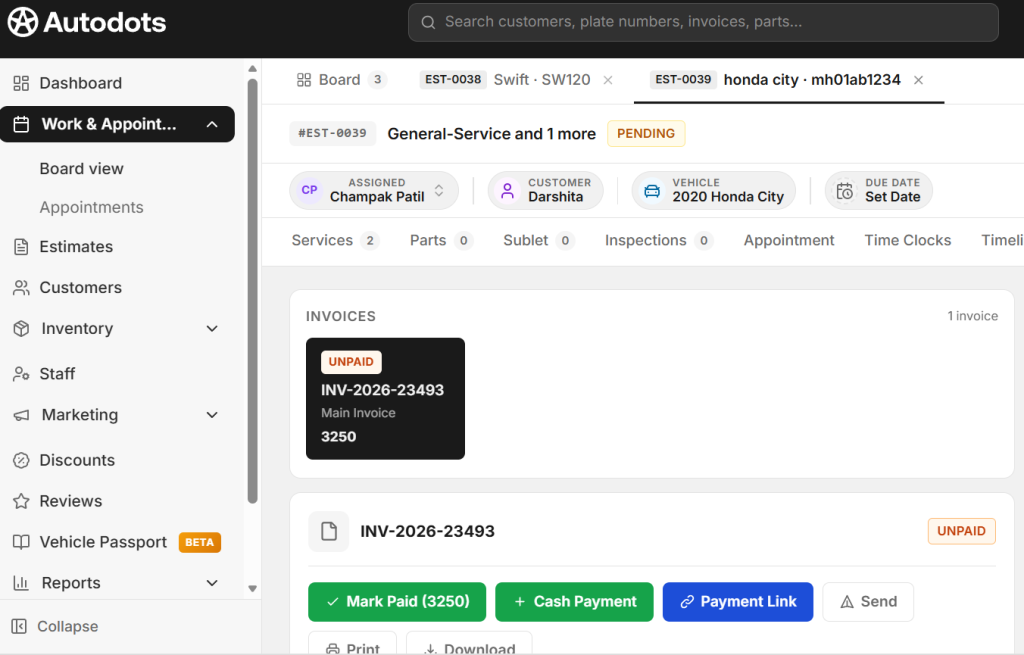
In our example, the job card shows:
- Customer: Darshita
- Vehicle: 2020 Honda City — MH01AB1234
- Services: General Service (Rs 2000) + Oil Change (Rs 500)
- Grand Total: Rs 3250.00
Step 2 — Click Convert to Invoice
At the bottom right of the job card screen — you will see a black button that says Convert to Invoice. This is the heart of the one click invoice AutoDots feature.
Click this button once — and AutoDots instantly generates a complete professional invoice.
Step 3 — Invoice Is Ready Instantly
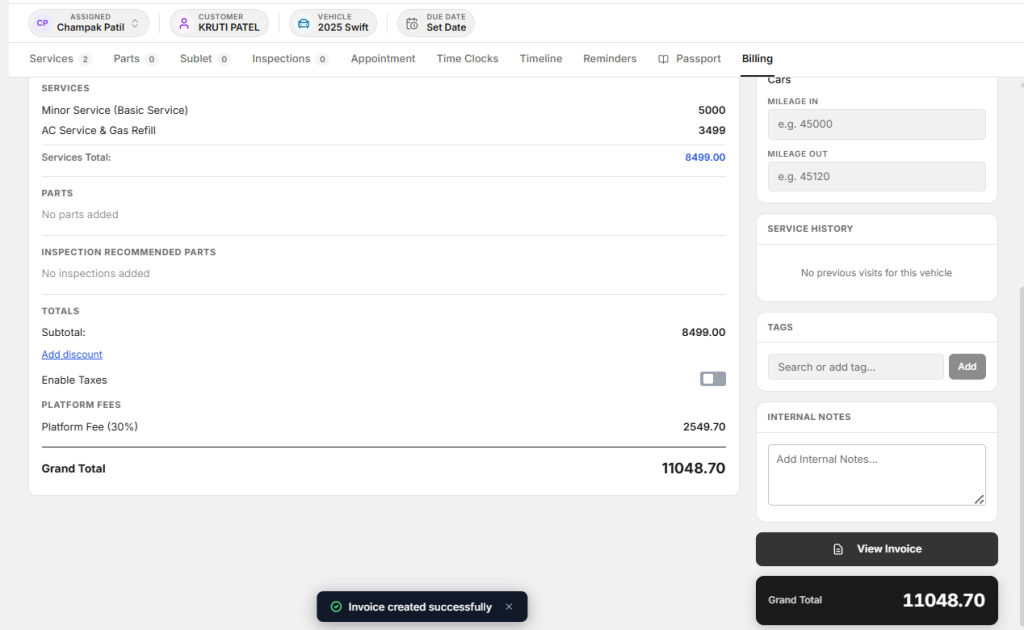
After clicking Convert to Invoice — AutoDots automatically:
- Generates a unique Invoice Number — Example: INV-2026-23493
- Pulls all customer and vehicle details from the job card
- Lists all services with individual prices
- Shows Work Order Summary with services total
- Calculates subtotal, taxes, and platform fees automatically
- Displays Grand Total — Rs 3250.00 in our example
- Marks invoice status as UNPAID until payment is received
The entire invoice is created in seconds — with zero manual data entry required. This is the one click invoice AutoDots experience in action.
One Click Invoice AutoDots — Payment Options
Once your invoice is created using one click on invoice AutoDots, you have multiple ways to collect payment immediately:
Mark Paid
If the customer has already paid in person — click Mark Paid to instantly update the invoice status and record the payment.
Cash Payment
Record a cash payment directly against the invoice — keeping your payment records accurate and up to date.
Payment Link
Generate a digital payment link and share it with the customer — they can pay online from anywhere using their preferred payment method.
One Click Invoice AutoDots — How to Send Invoice to Customer
Once your invoice is ready via one click invoice AutoDots, sending it to your customer is equally simple. Click the Send button on the invoice screen and choose from two options:
Option 1 — Send via Email
AutoDots automatically fills in:
- Customer email address — pulled from job card
- Subject line — Example: Invoice INV-2026-23493 from Your Garage
- Professional message body — personalised with customer name
- Invoice attached automatically
Simply click Send Email — and your customer receives a professional invoice instantly.
Option 2 — Send via SMS
Prefer SMS? AutoDots can send the invoice directly to the customer’s mobile number via SMS — ideal for customers who prefer text communication over email.
Pro Tip: Use the Payment Link option along with Email or SMS sending — so your customer can pay directly from the invoice they receive. This significantly speeds up payment collection for garage owners using one click invoice AutoDots.
One Click Invoice AutoDots — Additional Invoice Options
Beyond creating and sending, the one click invoice AutoDots feature also gives you:
| Option | What It Does |
|---|---|
| Print a physical copy of the invoice for your records | |
| Download | Download the invoice as a PDF file |
| View Invoice | See the full formatted invoice at any time |
| Add Discount | Apply a discount before finalising the invoice |
| Enable Taxes | Toggle tax calculation on or off |
| Payment History | Track all payments recorded against the invoice |
Why One Click Invoice AutoDots Saves Garage Owners Time and Money
Before AutoDots — Manual Invoice Problems:
- Manually re-entering customer details for every invoice
- Calculating totals by hand — risk of errors
- Writing or printing paper invoices
- Calling customers to share invoice details
- No digital payment options
- 15 to 20 minutes per invoice
After AutoDots — One Click Invoice Benefits:
- Invoice created in under 60 seconds
- Zero manual data entry — everything pulled from job card
- Professional invoice with unique number generated automatically
- Send via Email or SMS instantly
- Digital payment link for faster payment collection
- Complete payment history tracked automatically
| Task | Manual Method | AutoDots One Click |
|---|---|---|
| Invoice Creation | 15–20 minutes | Under 60 seconds |
| Customer Details | Manual entry | Auto-filled |
| Total Calculation | Manual | Automatic |
| Sending Invoice | Print or call | Email or SMS |
| Payment Collection | Cash only | Cash + Digital Link |
| Payment Tracking | Paper records | Digital history |
One Click Invoice AutoDots — Who Is It For?
The one click invoice AutoDots feature is designed for:
- Independent garage owners who want to get paid faster
- Multi-bay workshops handling high volumes of jobs daily
- EV service centres managing new types of service billing
- Fleet service providers handling multiple vehicles per client
- Any garage owner who wants to eliminate paper invoicing forever
Get Started with One Click Invoice AutoDots Today
The one click invoice AutoDots feature is available to all AutoDots garage partners. If you are not yet on AutoDots — getting started is free and takes just a few minutes.
Register your garage today and start creating professional invoices in one click — getting paid faster and keeping your customers happy.
Register Your Garage Free on AutoDots — autodots.io/partners
One Click Invoice AutoDots — Final Verdict
The one click invoice AutoDots feature transforms one of the most time-consuming tasks in garage management into a 60-second process. No manual data entry. No calculation errors. No paper. Just a professional invoice — ready to send via Email or SMS — created from your completed job card in a single click.
For garage owners serious about running an efficient, modern business in 2026 — one click invoice AutoDots is not just a feature. It is a game changer.
Start using Autodots for free and grow your garage faster
👉 autodots.io/partners
Looking to grow your garage business?
Want to learn more?
- How to Create a One-Click Invoice with AutoDots — The Fastest Way to Get Paid in 2026
- How to Create Estimates & Quotes with Autodots: Complete Guide for Garage Owners (2026)
- How to Add Products in Autodots Garage Management: Complete Guide (2026)
- How to Manage Parts Inventory with Autodots: Complete Guide for Garage Owners (2026)
- How to Set Up Vehicle Passport for Customers with Autodots: Complete Guide (2026)
- How to Accept Online Bookings with Autodots: Complete Guide for Garage Owners (2026)
- How to Manage Digital Job Cards with Autodots: Complete Guide for Garage Owners (2026)