
Running out of parts in the middle of a job is one of the biggest problems a garage can face. With Autodots, you can manage parts inventory with Autodots from one simple dashboard — track stock levels, monitor low stock alerts, and always know exactly what is available in your garage.
This guide will walk you through the complete Inventory section so you can manage parts inventory with Autodots efficiently every day.
Table of Contents

Where to Find the Inventory Section
Log in to your Autodots partner dashboard. In the left side navigation menu, click on “Inventory”. This will expand the inventory menu showing four sections:
- Overview — Complete stock summary at a glance
- Products — All parts and products list
- Categories — Organize parts by category
- Suppliers — Manage your parts suppliers
Inventory Overview Dashboard
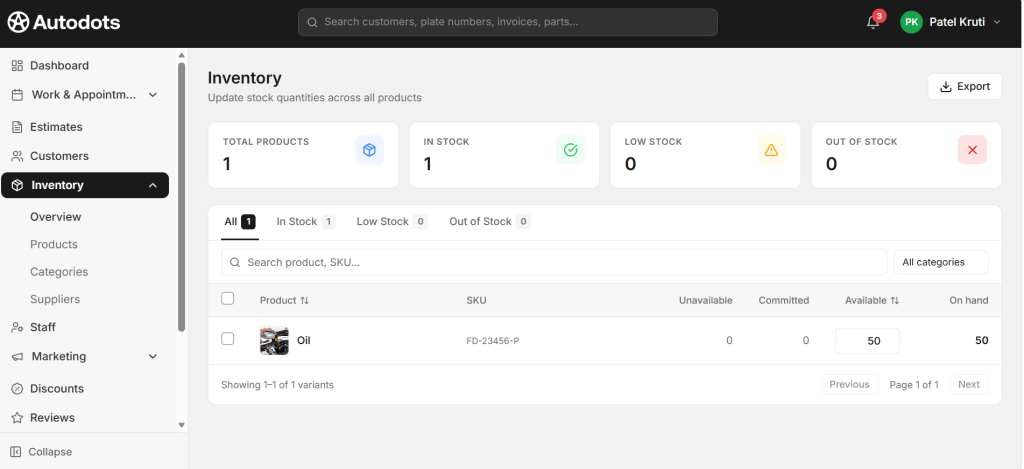
The first thing you see when you manage parts inventory with Autodots is the Overview page. It gives you a complete stock summary through four cards at the top:
Stock Summary Cards
- Total Products — Total number of products listed in your inventory
- In Stock — Products that are currently available
- Low Stock — Products that are running low and need reordering
- Out of Stock — Products that are completely finished
These four cards give you an instant health check of your entire parts inventory every time you open the dashboard to manage parts inventory with Autodots.
Stock Status Tabs
Below the summary cards, you can filter your inventory using status tabs:
Filter Tabs
- All — View every product in your inventory
- In Stock — Only show available products
- Low Stock — Only show products running low
- Out of Stock — Only show finished products
These filters make it fast and easy to manage parts inventory with Autodots — especially when you need to quickly check what needs to be reordered.
Understanding the Inventory List
The main inventory list shows all your products in a clean table format. Each product row shows the following details when you manage parts inventory with Autodots:
Inventory List Columns
- Product — Product image and name (e.g., Oil, Brake Pads, Air Filter)
- SKU — Unique product code for easy identification (e.g., FD-23456-P)
- Unavailable — Quantity that is damaged or reserved and cannot be used
- Committed — Quantity already assigned to active jobs
- Available — Quantity currently available for new jobs
- On Hand — Total physical quantity in your garage (Available + Committed)
Example
For example, if you have Oil (SKU: FD-23456-P) with 50 units Available and 50 units On Hand, it means all 50 units are ready to use with none committed to any active job yet.
Search and Filter Products
When you manage parts inventory with Autodots, finding a specific product is quick and easy:
Search Options
- Use the search bar to search by product name or SKU number
- Use the “All Categories” dropdown to filter products by category
- Sort products by name or available quantity using the column headers
Export Inventory Data
Autodots allows you to export your complete inventory data with one click. Click the “Export” button in the top right corner of the Inventory page to download your full stock list. This is useful for:
Why Export Inventory
- Sharing stock reports with your team
- Keeping offline backups of inventory records
- Comparing stock levels over time
- Placing bulk orders with suppliers based on current stock
Other Inventory Sections
Products
The Products section is where you add new parts and products to your inventory, set pricing, upload product images, assign SKUs, and manage stock quantities. Every product you add here becomes available to use in Estimates and Job Cards.
Categories
Organize your parts into categories like Engine Parts, Filters, Lubricants, Brake Parts, Electrical, and more. Categories make it faster to find the right part when creating estimates or job cards when you manage parts inventory with Autodots.
Suppliers
The Suppliers section lets you save details of all your parts suppliers — name, contact, and products they supply. This helps you quickly identify which supplier to contact when stock runs low.
How Inventory Connects with Jobs
One of the most powerful features when you manage parts inventory with Autodots is how inventory is directly connected to your estimates and job cards:
Automatic Stock Updates
- When you add a part to an Estimate → it becomes Committed stock
- When the job is marked Completed → stock is automatically deducted from On Hand
- Stock levels update in real time — no manual counting needed
Benefits of Managing Parts Inventory with Autodots
Here is why every garage owner should manage parts inventory with Autodots instead of manual stock registers:
For Garage Owners
- Real-time stock visibility — always know what you have
- Low stock alerts — never run out of critical parts unexpectedly
- Automatic stock deduction on job completion
- Search by product name or SKU instantly
- Filter by stock status — In Stock, Low Stock, Out of Stock
- Export inventory data anytime
- Connected with Estimates and Job Cards
- Supplier management for quick reordering
- Zero manual stock counting needed
Final Thoughts
A well-managed parts inventory means fewer delays, fewer surprises, and happier customers. When you manage parts inventory with Autodots, you get complete visibility over your stock — from the moment a part is added to your inventory to the moment it is used in a completed job.
Log in to your Autodots partner dashboard at Autodots Partner and start managing your garage inventory digitally today.
Read more : For Garage Owners — Grow Your Business with Autodots: Complete Partner Guide (2026)
How to Set Up Vehicle Passport for Customers with Autodots: Complete Guide (2026)