
One of the most important parts of running a professional garage is giving customers a clear price before the work begins. With Autodots, you can create estimates and quotes with Autodots in just a few minutes — directly from your partner dashboard — and send them to customers instantly.
This guide will walk you through every step to create estimates and quotes with Autodots, from opening the Estimates section to sending a professional quote to your customer.
Table of Contents
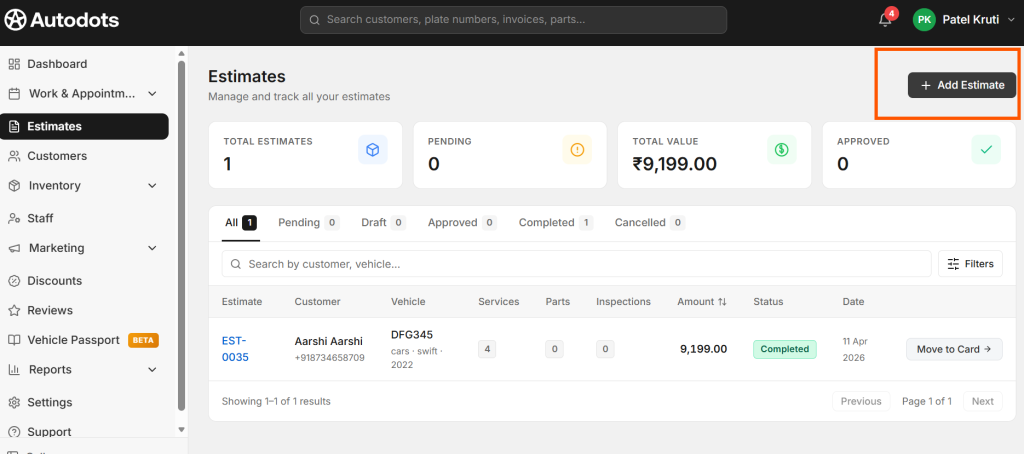
Where to Find the Estimates Section
Log in to your Autodots partner dashboard. On the left side navigation menu, click on “Estimates”. This will open the Estimates main page where you can see:
- Total Estimates — Total number of estimates created
- Pending — Estimates waiting for customer approval
- Total Value — Combined value of all estimates
- Approved — Estimates approved by customers
You can also filter estimates by status — All, Pending, Draft, Approved, Completed, Cancelled — and search by customer name or vehicle number.
Step 1: Click “Add Estimate”
To create estimates and quotes with Autodots, click the “+ Add Estimate” button in the top right corner of the Estimates page. This will open the New Estimate form where you fill in all the job details.
Step 2: Search and Select Customer
The first section in the New Estimate form is Customer. Use the search bar to find your customer by name or phone number. If the customer is already in your database, their details will appear instantly.
This customer search is connected to your Customer Database, so you never have to re-enter details for returning customers when you create estimates and quotes with Autodots.
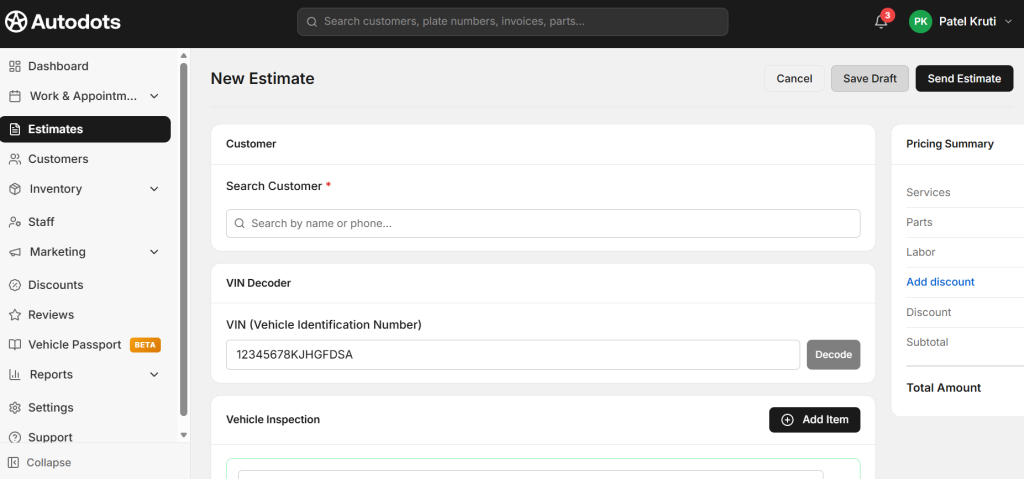
Step 3: VIN Decoder (Optional)
Below the customer section, you will find the VIN Decoder field. Enter the Vehicle Identification Number (VIN) of the customer’s vehicle and click “Decode”. The system will automatically fetch the vehicle details — make, model, and year — saving you time and avoiding manual entry errors.
Step 4: Vehicle Inspection Items
The Vehicle Inspection section allows you to add inspection items before creating the estimate. Click “+ Add Item” to add any inspection points you want to include. This gives customers a transparent view of what was checked on their vehicle.
Step 5: Add Services
This is the most important section when you create estimates and quotes with Autodots. Under the Services section:
- Click “+ Add Service” to add a service
- Search for the service name from your service list
- Enter the Quantity (QTY) and Price
- The Total will be calculated automatically
- You can add multiple services in one estimate
- Use “Apply Template” to quickly load a pre-saved service package
Step 6: Add Parts
Under the Parts section, click “+ Add Part” to include any parts needed for the job:
- Enter Part # and Part Name
- Set Unit Price and Quantity
- Total will be calculated automatically
- Search parts directly from your Parts Inventory
Adding parts separately gives customers a fully transparent breakdown of costs when you create estimates and quotes with Autodots.
Step 7: Sublet / Outside Work (If Needed)
If any part of the job will be sent to an outside vendor, use the Sublet / Outside Work section. Click “+ Add Row” and fill in:
- Vendor Name
- Description of the work
- Shop Cost — what you pay the vendor
- Customer Price — what you charge the customer
Step 8: Add Labour Charges
In the Labor Charges section, enter:
- Labor Hours — estimated hours for the job
- Rate per Hour — your hourly labor rate
- Total Labor Cost — calculated automatically
- Toggle between Fixed / Day rate if needed
Step 9: Additional Details
Before finalizing, fill in the Additional Details section:
- Customer Reported Issues — Describe what the customer told you about the problem
- Internal Notes — Add notes for your team (not visible to the customer)
- Terms & Conditions — Default terms are pre-filled (e.g., “This estimate is valid for 7 days from the date of issue. Final charges may vary based on actual work performed and parts used.”)
Step 10: Review Pricing Summary
On the right side of the screen, the Pricing Summary updates in real time as you add items:
- Services total
- Parts total
- Labour total
- Discount (if applied)
- Subtotal
- Total Amount
Always review this summary before sending. You can also click “Add Discount” to apply a discount for the customer.
Step 11: Save Draft or Send Estimate
Once everything is filled in, you have two options when you create estimates and quotes with Autodots:
- Save Draft — Save the estimate without sending. You can come back and edit it later.
- Send Estimate — Send the estimate directly to the customer immediately.
How Does the Customer Receive the Estimate?
When you click “Send Estimate”, the customer receives the quote through three channels:
- 📧 Email — A professional estimate email is sent to the customer’s registered email address
- 🌐 Website Notification — The customer receives a notification on autodots.io when logged in
- 🔔 App Notification — An instant push notification is sent to the customer’s Autodots app
This multi-channel notification system ensures that customers never miss an estimate when you create estimates and quotes with Autodots.
How to Track Estimate Status
After sending, you can track every estimate from the Estimates main page. Each estimate shows:
- Estimate number (e.g., EST-0035)
- Customer name and phone number
- Vehicle details (make, model, registration, year)
- Number of services, parts, and inspections
- Total amount
- Current status — Pending, Draft, Approved, Completed, Cancelled
- Date created
Convert Estimate to Job Card
Once a customer approves the estimate, you can convert it into a Job Card directly from the Estimates page by clicking “Move to Card →”. This saves time and keeps all job details connected — no need to re-enter any information.
Why You Should Create Estimates and Quotes with Autodots
Here is why smart garage owners create estimates and quotes with Autodots instead of using paper or WhatsApp:
- Professional estimates build customer trust
- Real-time pricing summary — no calculation mistakes
- Multi-channel delivery — Email, Website & App notification
- Save drafts and edit anytime before sending
- Track all estimate statuses in one place
- One-click conversion from estimate to job card
- Transparent parts, labour, and sublet breakdown
- Pre-filled Terms & Conditions for legal protection
Final Thoughts
Sending a clear and professional estimate before starting any job is the mark of a trusted garage. When you create estimates and quotes with Autodots, you give customers full transparency, reduce disputes, and speed up approvals — all from one simple dashboard.
Log in to your Autodots partner dashboard at autodots and start creating professional estimates for your customers today.
Read more : For Garage Owners — Grow Your Business with Autodots: Complete Partner Guide (2026)