
Getting online bookings is one of the biggest advantages of listing your garage on Autodots. But knowing how to accept online bookings with Autodots and manage them efficiently is equally important. This guide will walk you through everything — from receiving a booking notification to converting it into a job.
Table of Contents
What Happens When a Customer Books Your Garage?
When a customer books your garage through the Autodots platform, you receive an instant notification on your partner dashboard. This is the first step when you accept online bookings with Autodots — you are alerted immediately so no booking is ever missed.
Partner Dashboard Notifications
Your notification bell icon in the top right corner will show a red badge with the count of unread notifications. When you click it, you will see alerts like:
- New Booking Received — “A new appointment has been booked at your garage. Check your appointments to review.”
- New Appointment Created — “Your garage has a new appointment created.”
- Cash Payment Received — Notification when a customer payment is confirmed against an invoice
These real-time notifications ensure you never miss a booking when you accept online bookings with Autodots.
Where to Manage Your Bookings
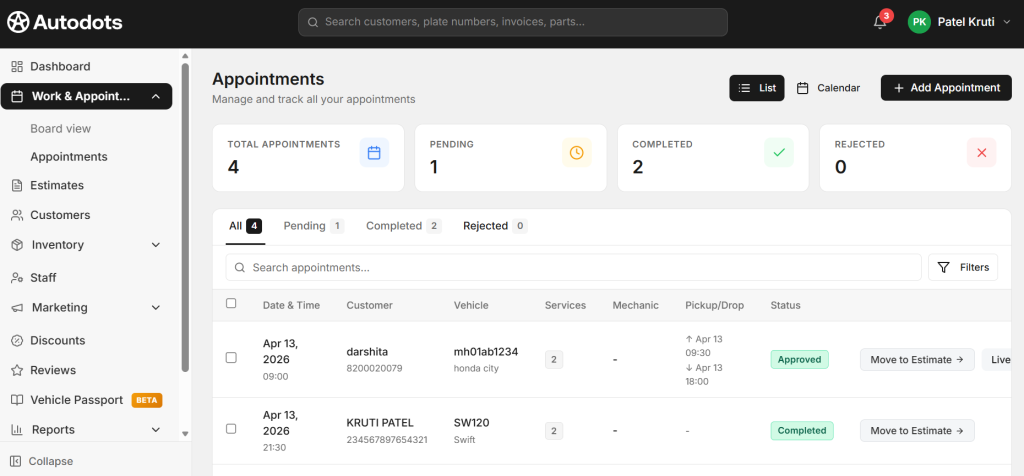
To manage all your bookings, go to Work & Appointments in the left navigation menu, then click on Appointments. This is the main page where you accept online bookings with Autodots and track every appointment.
Appointments Dashboard Overview
At the top of the Appointments page, you will see four summary cards:
- 📅 Total Appointments — Total bookings received so far
- ⏳ Pending — Bookings waiting for your review
- ✅ Completed — Successfully finished appointments
- ❌ Rejected — Appointments that were rejected
Appointment Status Tabs
Below the summary cards, you can filter appointments by status:
- All — View every appointment
- Pending — Bookings that need action
- Completed — Finished jobs
- Rejected — Declined appointments
Understanding the Appointments List
Each appointment in the list shows all the important details you need when you accept online bookings with Autodots:
Appointment Details Columns
- Date & Time — Scheduled appointment date and time slot
- Customer — Customer name and phone number
- Vehicle — Vehicle registration number and model
- Services — Number of services booked
- Mechanic — Assigned mechanic (if assigned)
- Pickup/Drop — Pickup and drop timing if customer requested
- Status — Current status badge (Approved / Completed / Pending / Rejected)
Two Ways to View Appointments
When you accept online bookings with Autodots, you can switch between two views depending on your preference:
List View
Shows all appointments in a clean table format. Best for quickly scanning multiple bookings, searching by customer or vehicle, and managing day-to-day appointments.
Calendar View
Shows appointments in a calendar layout so you can see your schedule by day, week, or month. Best for planning ahead and avoiding overbooking time slots.
How to Add a Manual Appointment
Apart from receiving online bookings, you can also add appointments manually. Click the “+ Add Appointment” button in the top right corner of the Appointments page to create a walk-in or phone booking directly from your dashboard when you accept online bookings with Autodots.
How to Convert a Booking to an Estimate
Once you review a booking and are ready to proceed, click the “Move to Estimate →” button next to the appointment. This will automatically create an Estimate with all the booking details pre-filled — customer info, vehicle details, and selected services.
Why Convert to Estimate?
- ✅ Send a detailed price breakdown to the customer before starting work
- ✅ Add extra services or parts if needed
- ✅ Get customer approval before beginning the job
- ✅ Estimate can then be converted to a Job Card on the Workboard
Live Tracking for Customers
One of the most powerful features when you accept online bookings with Autodots is that customers can track their booking status in real time. Once you update the job status on your Workboard, the customer automatically receives notifications:
Customer Notification Flow
- 🔔 Appointment Confirmed — Booking received successfully
- 🔔 Vehicle Checked In — Vehicle has arrived at the garage
- 🔔 Work Started — Mechanic has started working
- 🔔 Vehicle Ready for Pickup — Service completed, vehicle ready
How to Search and Filter Appointments
The Appointments page has a built-in search bar where you can search by customer name, vehicle registration, or service type. Use the Filters button to narrow down results by date range, status, or mechanic when you accept online bookings with Autodots.
Benefits of Accepting Online Bookings with Autodots
For Garage Owners
- ✅ Instant notification for every new booking
- ✅ All appointments in one organized dashboard
- ✅ List and Calendar view for better planning
- ✅ One-click conversion from booking to estimate to job card
- ✅ No missed bookings — 24/7 online booking system
- ✅ Manual appointment entry for walk-in customers
For Customers
- ✅ Easy online booking without calling the garage
- ✅ Instant booking confirmation notification
- ✅ Real-time job status updates
- ✅ Complete booking history on their Autodots account
Final Thoughts
Managing appointments professionally is what separates a modern garage from a traditional one. When you accept online bookings with Autodots, you get a complete system — instant notifications, organized appointment management, calendar view, one-click estimate conversion, and automatic customer updates.
Log in to your Autodots partner dashboard at autodots.io and start accepting online bookings for your garage today.
Read more :
How to Manage Digital Job Cards with Autodots: Complete Guide for Garage Owners (2026)
How to Create a One-Click Invoice with AutoDots — The Fastest Way to Get Paid in 2026
How to Create Estimates & Quotes with Autodots: Complete Guide for Garage Owners (2026)