
When you list your garage online, one thing matters the most — clearly showing what services you offer. On Autodots, this is very easy to do using the services section in your dashboard.
In this guide, you will learn how to add and manage services on Autodots step by step. We will cover everything from selecting categories to adding custom services with pricing and details.
If you set this up properly, your garage profile will look more professional and customers will trust you more.
Table of Contents
Where to Find the Services Section?
To add and manage services on Autodots, first login to your partner dashboard. Then go to the General Settings page.
Scroll down and you will find the “Services offered” section. This is where all the setup happens.
There are two main parts:
- Services Offered — select from categories
- Custom Services — add your own services
Part 1: Selecting Services from Categories
The easiest way to add and manage services on Autodots is by selecting from ready-made categories. These are already organized based on common garage work.
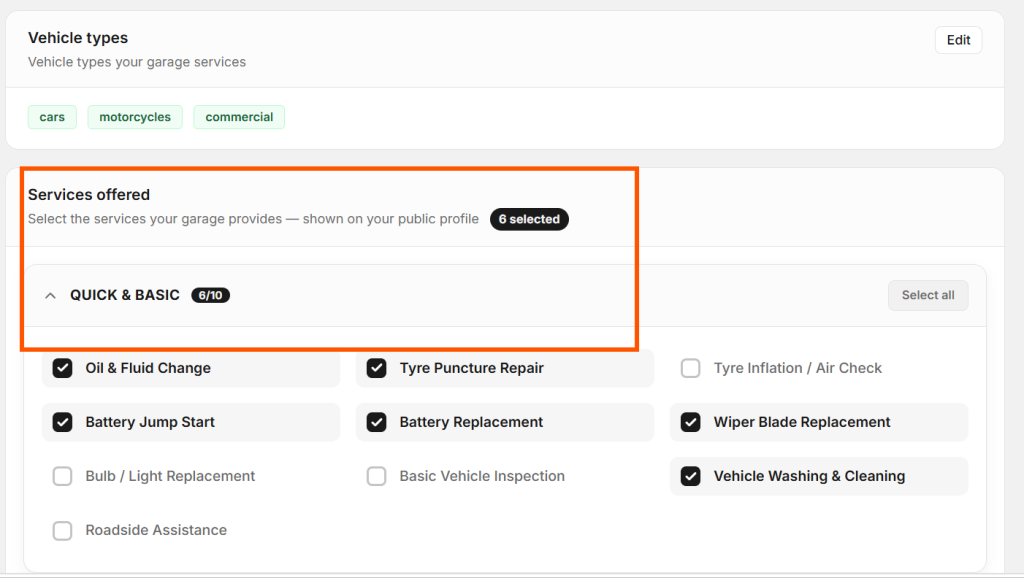
Quick & Basic services
Quick & Basic
This section includes daily services like oil change, tyre repair, battery replacement, and car washing.
You just need to click on the checkbox to select a service. If you offer most services, you can use the “Select all” option.
Mechanical
This section includes major repair services like engine repair, brake work, clutch replacement, and suspension.
If your garage handles heavy work, this category is very important.
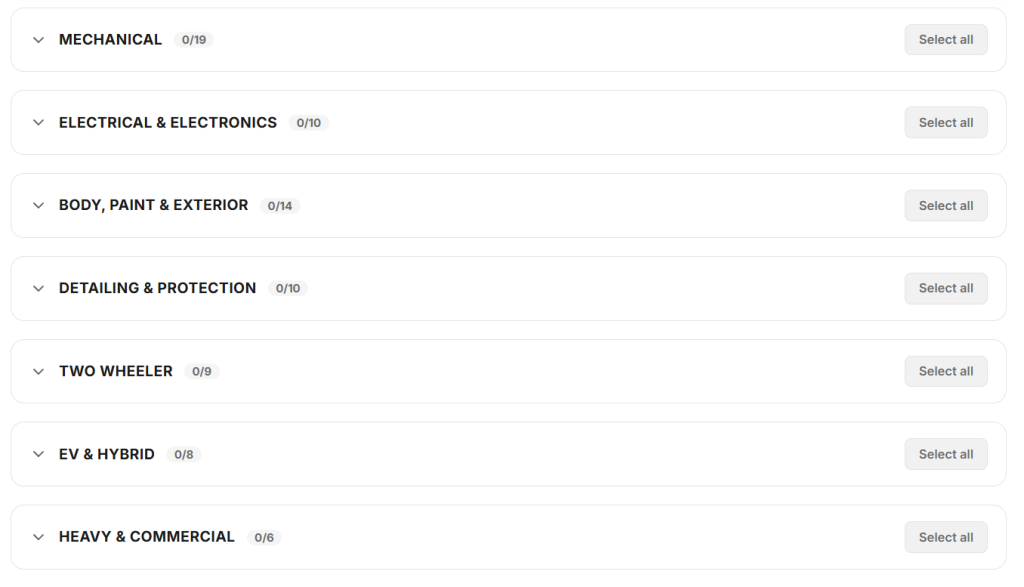
Other Categories
You will also see categories like Electrical, Body & Paint, Detailing, Two Wheeler, EV & Hybrid, and more.
To properly add and manage services on Autodots, always select only the services you actually provide.
💡 Only selected services will be visible to customers. Keep them accurate.
Part 2: Adding Custom Services
Sometimes, categories are not enough. You may want to show your own service packages. This is where custom services help.
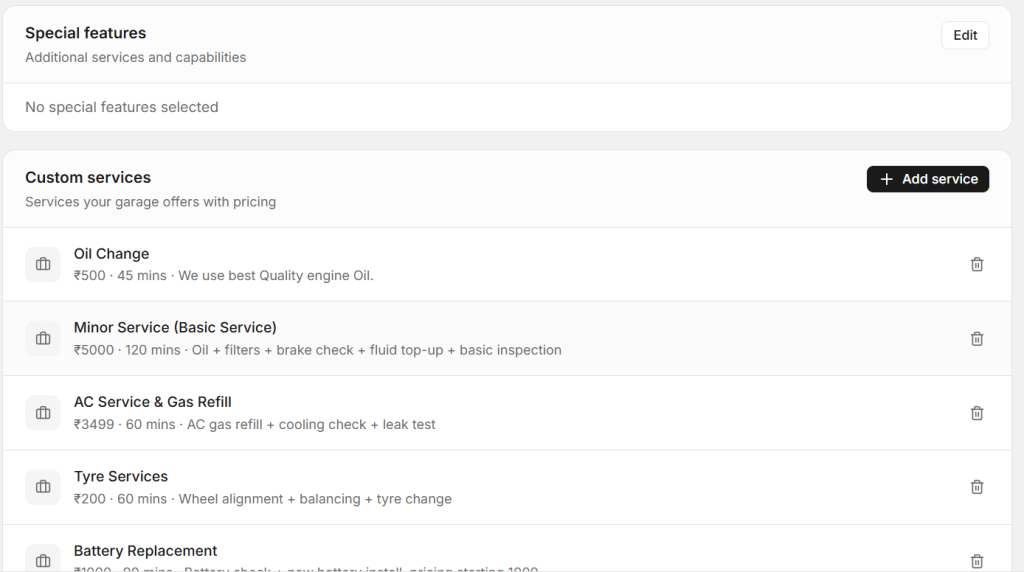
Custom services section
You can use this section to add and manage services on Autodots with full details like pricing and duration.
Steps to Add Custom Service
Follow these simple steps:
- Click “+ Add service”
- Enter service name
- Add price
- Set duration
- Write description
- Save
This process makes it very easy to add and manage services on Autodots without any confusion.
Write Better Descriptions
Always keep your description short and clear.
Example: “Oil change + filter + brake check + basic inspection”
Good descriptions help customers quickly understand your service.
Special Features Section
You can also highlight extra features like pickup & drop, warranty, or 24/7 support.
These features make your profile stronger when you add and manage services on Autodots.
How Saving Works
One of the best things is that everything saves automatically.
When you select or remove services, changes are applied instantly. This makes it fast to add and manage services on Autodots.
Register Your Garage Free on AutoDots — autodots.io/partners
Pro Tips to Get More Customers
1. Select Only Relevant Services
Never select all services blindly. Always choose what you actually offer.
2. Keep Pricing Clear
Example: Starting ₹500. Clear pricing builds trust.
3. Update Regularly
To properly add and manage services on Autodots, review your list every few months.
4. Add EV Services
Electric vehicles are growing fast. Don’t miss this opportunity.
Why This Matters
When you correctly add and manage services on Autodots, your profile becomes more professional.
Customers can clearly see what you offer, which increases trust and bookings.
A well-maintained service list also helps you stand out from other garages.
Summary
Now you know how to add and manage services on Autodots in a simple way.
Just go to General Settings, select your services, and add custom ones with details.
Take a few minutes today to update your services and improve your profile.
Start using Autodots for free and grow your garage faster
👉 autodots.io/partners
Looking to grow your garage business?
Want to learn more?
- How to Create a One-Click Invoice with AutoDots — The Fastest Way to Get Paid in 2026
- How to Create Estimates & Quotes with Autodots: Complete Guide for Garage Owners (2026)
- How to Add Products in Autodots Garage Management: Complete Guide (2026)
- How to Manage Parts Inventory with Autodots: Complete Guide for Garage Owners (2026)
- How to Set Up Vehicle Passport for Customers with Autodots: Complete Guide (2026)
- How to Accept Online Bookings with Autodots: Complete Guide for Garage Owners (2026)
- How to Manage Digital Job Cards with Autodots: Complete Guide for Garage Owners (2026)