
Managing multiple jobs at a garage can get confusing without a proper system. With Autodots, you can manage digital job cards with Autodots from one simple dashboard — track every vehicle, assign mechanics, update job status, and automatically notify customers at every step.
This guide will show you exactly how to manage digital job cards with Autodots using the Workboard feature — from the moment a job is created to the moment the vehicle is ready for pickup.
Table of Contents
What is a Digital Job Card on Autodots?
A Digital Job Card on Autodots is a complete record of a vehicle’s service job. It contains all the important details — customer name, contact number, vehicle details, services to be done, parts required, labour charges, and current job status.
Every time a customer booking is confirmed or an estimate is approved, a Job Card is automatically created on your Workboard. This is how you manage digital job cards with Autodots — no paper, no manual registers, everything digital and trackable in real time.
Where to Find the Workboard
Log in to your Autodots partner dashboard. Click on “Work & Appointments” from the left side navigation menu, then select “Workboard”. This is the main screen where you manage digital job cards with Autodots.
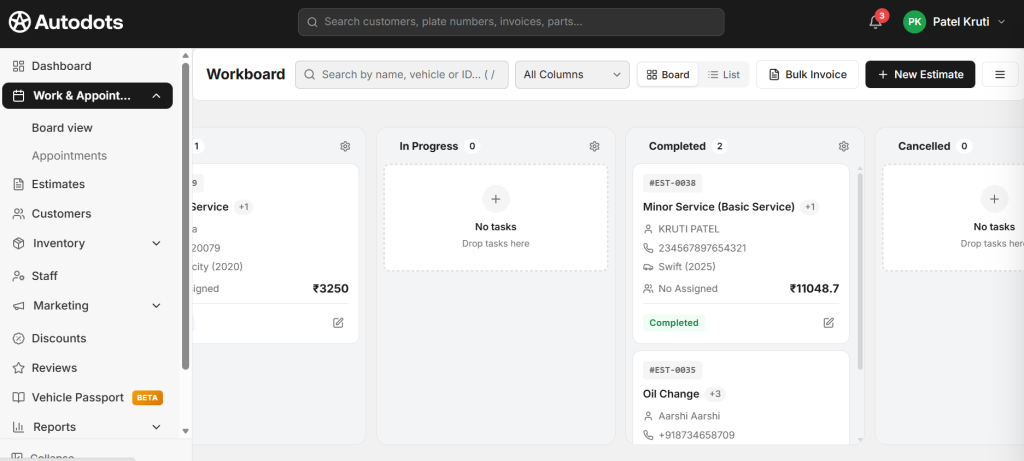
Understanding the Workboard (Kanban View)
The Workboard uses a Kanban-style layout with four columns that represent the current status of every job:
- 📋 To-Do — Jobs that are confirmed but work has not started yet
- 🔧 In Progress — Jobs where work is currently happening
- ✅ Completed — Jobs where all services are finished
- ❌ Cancelled — Jobs that were cancelled
Each job card in the Workboard shows:
- Estimate number (e.g., #EST-0039)
- Service name (e.g., General Service, Oil Change, Minor Service)
- Customer name and phone number
- Vehicle details (make, model, year)
- Assigned mechanic (or “No Assigned” if not yet assigned)
- Total job amount
- Current status badge (Pending / Completed)
Two Ways to View Jobs
When you manage digital job cards with Autodots, you can switch between two views:
- Board View — Kanban columns (visual drag-and-drop layout)
- List View — All jobs in a simple list format for quick scanning
Use Board View for day-to-day job tracking and List View when you need to quickly search or filter jobs.
How to Create a New Job Card
There are two ways a Job Card gets created when you manage digital job cards with Autodots:
- From an Estimate — When a customer approves an estimate, click “Move to Card →” on the Estimates page and the job card is created automatically with all details pre-filled
- New Estimate Button — Click “+ New Estimate” on the Workboard to create a fresh job directly from the board
How to Move Jobs Across Columns
The most powerful feature when you manage digital job cards with Autodots is the ability to move job cards across status columns. You can do this in two ways:
- Drag and Drop — Simply drag the job card from one column to another
- Edit Button — Click the edit icon on the job card and update the status manually
For example, when your mechanic starts working on a vehicle, move the job card from To-Do → In Progress. When the service is complete, move it to Completed.
Customer Notifications — Automatic at Every Step
One of the biggest advantages when you manage digital job cards with Autodots is that customers receive automatic notifications at every stage of their job — without you having to call or message them manually.
Here is exactly what notifications customers receive:
- Vehicle Checked In — “Hi KRUTI PATEL, your vehicle Swift SW120 has been checked in at OMKAR. We’ll keep you updated!”
- Work Started — “Hi KRUTI PATEL, work has started on your Swift SW120 at OMKAR.”
- Vehicle Ready for Pickup — “Hi KRUTI PATEL, your Swift SW120 is ready for pickup at OMKAR! Contact us at 90993 05432.”
These notifications are sent automatically through the website and app — keeping customers informed and reducing unnecessary phone calls to your garage.
What the Customer Sees on Their Side
When you manage digital job cards with Autodots and update job statuses, customers can see everything in real time on their My Bookings page at autodots.io. Each booking shows:
- Garage name and address
- Service name
- Appointment date and time
- Vehicle details
- Current status (Completed / In Progress)
- Total amount
- Order number
- View Details and Invoice buttons
How to Use Bulk Invoice
When you have multiple completed jobs, you can generate invoices for all of them at once using the “Bulk Invoice” button on the Workboard. This saves significant time compared to creating invoices one by one when you manage digital job cards with Autodots.
How to Search and Filter Jobs
The Workboard search bar allows you to search jobs by:
- Customer name
- Vehicle registration number
- Estimate ID
You can also filter by column status using the “All Columns” dropdown to focus on specific job stages when you manage digital job cards with Autodots.
Benefits of Managing Digital Job Cards with Autodots
Here is why every garage owner should manage digital job cards with Autodots instead of paper-based systems:
- All jobs visible in one screen — no missed work
- Drag-and-drop status updates — fast and simple
- Automatic customer notifications — no manual calling
- Complete job history — customer, vehicle, services, parts, amount
- Switch between Board and List view
- Bulk invoice generation for completed jobs
- Customer can track job status in real time on their side
- Zero paperwork — fully digital workflow
Final Thoughts
A well-organized garage is a profitable garage. When you manage digital job cards with Autodots, you eliminate confusion, reduce customer calls, speed up your workflow, and deliver a professional experience that keeps customers coming back.
Log in to your Autodots partner dashboard at Autodots partner and start managing your jobs digitally today.
Read more :
How to Create a One-Click Invoice with AutoDots — The Fastest Way to Get Paid in 2026
How to Create Estimates & Quotes with Autodots: Complete Guide for Garage Owners (2026)
For Garage Owners — Grow Your Business with Autodots: Complete Partner Guide (2026)
Read more about partnership with us : For Garage Owners — Grow Your Business with Autodots: Complete Partner Guide (2026)