
Every garage does the same services again and again — oil changes, brake services, AC service, tire rotation. But every time a new job comes in, staff have to manually enter the same services, parts, and labor details from scratch. This wastes time and creates room for errors. Garage job card templates in Autodots solve this problem completely.
With garage job card templates, you set up a service once — and apply it to any job card or estimate in seconds. No repeated data entry. No missing parts. No pricing mistakes. Just fast, accurate job cards every single time.
Table of Contents
What Are Garage Job Card Templates?
Garage job card templates are pre-built service packages that you create once in Autodots and reuse on any job. Each template includes the service name, parts required, labor hours, labor rate, and total estimated price — all pre-filled and ready to apply.
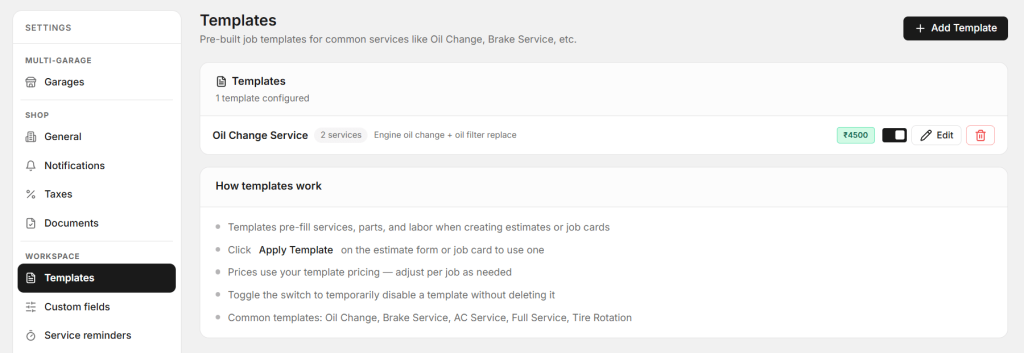
For example, you can create a template called “Oil Change Service” that includes engine oil change and oil filter replace — priced at ₹4500. Every time a customer comes in for an oil change, you simply apply this template to the job card and everything is filled in automatically.
Why Garage Job Card Templates Save Time
Without templates, your staff spends valuable time typing the same information over and over. With garage job card templates in Autodots, here is what changes:
- Job cards are created in seconds — not minutes
- Services, parts, and labor are pre-filled automatically
- Pricing is consistent across all jobs — no under or over charging
- Estimates are generated faster — customers get quotes quicker
- New staff can create accurate job cards without training
Common Garage Job Card Templates You Should Create
Autodots recommends setting up templates for your most common services. Here are the most popular garage job card templates used by workshop owners:
- Oil Change — Engine oil change + oil filter replace
- Brake Service — Brake pad replacement + brake fluid check
- AC Service — Gas refill + filter cleaning + performance check
- Full Service — Complete vehicle inspection + fluids + filters
- Tire Rotation — Rotate all four tires + pressure check
Once these templates are set up, your team can apply any of them to a job card with just one click.
How to Add a Garage Job Card Template in Autodots
Creating a new template in Autodots is quick and simple. Follow these steps:
Step 1 — Go to Settings → Templates
Log in to your Autodots dashboard and go to Settings → Templates under the Workspace section. You will see all your existing templates listed here.
Step 2 — Click “Add Template”
Click the + Add Template button in the top right corner. A form will open where you can build your template.
Step 3 — Enter Template Name and Description
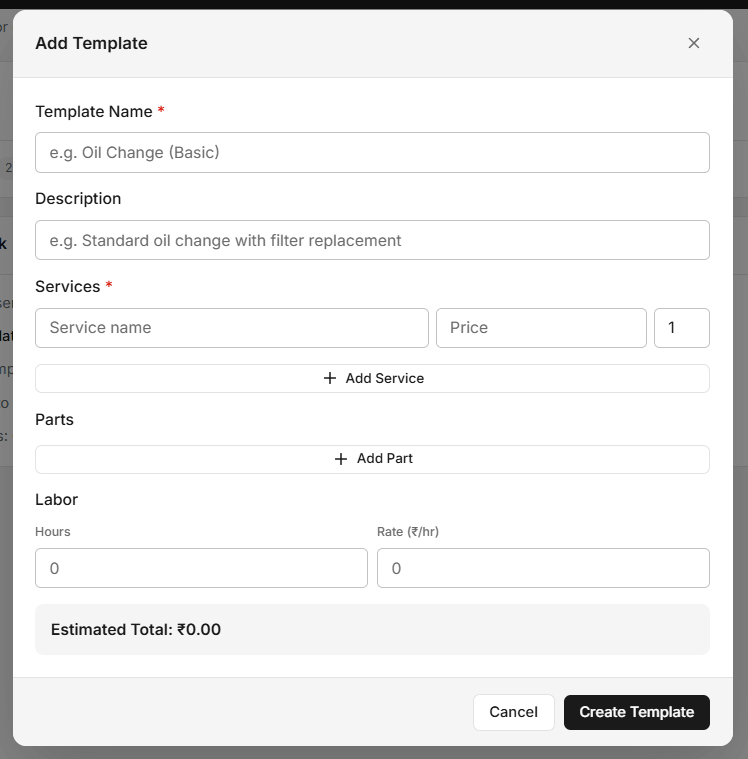
Give your template a clear name — for example “Oil Change (Basic)” or “Brake Service (Full)”. Add a short description so your staff knows exactly what the template covers.
Step 4 — Add Services
Under the Services section, enter each service included in this template. Add the service name and price for each one. You can add multiple services to a single template using the + Add Service button.
Step 5 — Add Parts
If the job requires specific parts, add them under the Parts section using the + Add Part button. This ensures parts are always included in the estimate and never forgotten.
Step 6 — Add Labor
Enter the number of labor hours and the rate per hour. Autodots will automatically calculate the labor cost and include it in the estimated total.
Step 7 — Review and Create
Check the Estimated Total at the bottom of the form. Once everything looks correct, click Create Template. Your new garage job card template is now saved and ready to use.
How to Apply a Template to a Job Card or Estimate
Using a saved template is even simpler than creating one. Here is how it works:
- Open a new job card or estimate in Autodots
- Click the Apply Template button on the form
- Select the template you want — for example, Oil Change Service
- All services, parts, labor, and pricing are filled in automatically
- Adjust any details if needed for that specific job
- Save and proceed — job card is ready in seconds
Prices from your template are applied automatically — but you can always adjust them per job if needed. This gives you both speed and flexibility.
Start using Autodots for free and grow your garage faster
–> autodots.io/partners
How to Manage Your Garage Job Card Templates
Once your garage job card templates are created, Autodots gives you full control to manage them:
Edit a Template
Click the Edit button next to any template to update the services, parts, labor, or pricing. Changes apply to all future jobs using that template.
Disable a Template
Use the toggle switch next to any template to temporarily disable it without deleting it. This is useful for seasonal services or services you offer only sometimes.
Delete a Template
Click the delete button to permanently remove a template you no longer need.
How Templates Work With Estimates
Garage job card templates work seamlessly with Autodots estimates. When a customer asks for a quote, you can apply a template to the estimate form — all pricing and services are pre-filled instantly. The customer receives a professional estimate in seconds instead of waiting while your staff manually calculates costs.
Once the customer approves the estimate, it can automatically convert to a job card — with all the same services and pricing already in place. No re-entry needed.
Final Thoughts
Setting up garage job card templates in Autodots is one of the smartest things you can do for your workshop. It saves time, reduces errors, keeps pricing consistent, and makes your entire team more efficient — from the front desk to the workshop floor.
Start by creating templates for your five most common services. Once your team starts using them, you will wonder how you ever managed without them.
Ready to take your garage digital? Autodots helps garage owners manage jobs, invoices, inventory and customers — all in one platform. Register your garage free at autodots.io/partners
Looking to grow your garage business?
Want to learn more?