
Every garage has unique information it needs to track. One garage may need to record insurance claim numbers. Another may need to track warranty expiry dates. A third may need a specific checklist on every job card. Standard job card fields cannot cover everything — and that is exactly why custom fields garage job cards exist in Autodots.
With custom fields garage job cards in Autodots, you can add any extra field you need — text, numbers, dates, checkboxes, or dropdowns — and have them appear on every job card and estimate automatically. This guide will show you exactly how to set them up and use them.
Table of Contents
What Are Custom Fields for Garage Job Cards?
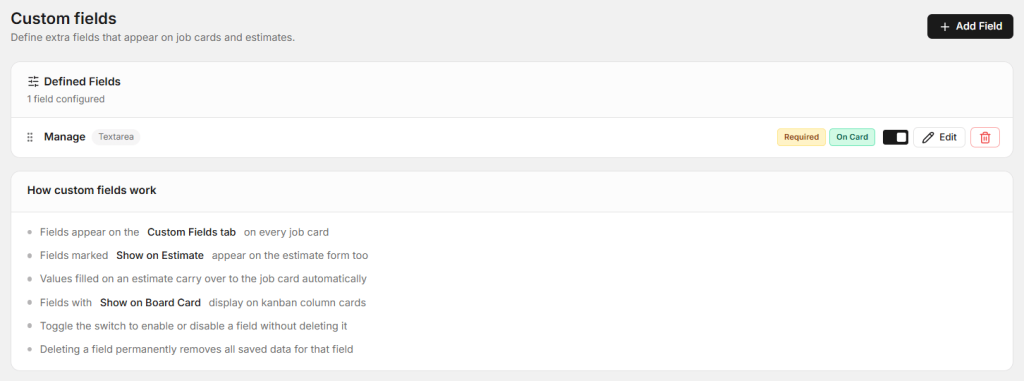
Custom fields garage job cards are extra input fields that you define yourself in Autodots. They appear on the Custom Fields tab of every job card — giving your team a place to record information that standard job cards do not cover.
For example, if your garage handles insurance repairs, you can add an “Insurance Claim Number” field. If you offer warranties, you can add a “Warranty Expiry Date” field. Whatever your garage needs to track — custom fields make it possible.
Why Custom Fields Garage Job Cards Are Important
Every garage operates differently. A one-size-fits-all job card cannot capture the specific details your business needs. Here is why setting up custom fields garage job cards in Autodots is valuable:
- Capture unique information specific to your garage
- All extra data is stored on the job card — nothing gets lost
- Fields can appear on estimates too — data carries over automatically
- Required fields ensure staff never miss important information
- Board card display keeps key info visible on your kanban board
Types of Custom Fields Available in Autodots
When you add a custom field in Autodots, you can choose from six different field types depending on what information you need to collect:
Text
A single-line text input. Best for short information like names, reference numbers, or codes. Example: Insurance Claim Number, Warranty Reference.
Textarea
A multi-line text input. Best for longer notes or descriptions. Example: Customer special instructions, additional job notes.
Number
A numeric input field. Best for quantities, mileage readings, or numeric references. Example: Current odometer reading, number of previous services.
Date
A date picker field. Best for recording specific dates. Example: Warranty expiry date, last service date, next service due date.
Checkbox
A simple Yes / No toggle. Best for confirmation items or quick checks. Example: Customer approved estimate, vehicle inspected before work, keys handed back.
Dropdown
A select field with options you define. Best for standardised choices. Example: Service type (Basic / Standard / Premium), payment method, vehicle condition.
Start using Autodots for free and grow your garage faster
–> autodots.io/partners
How to Add Custom Fields Garage Job Cards in Autodots
Setting up your first custom field in Autodots takes less than two minutes. Here is how:
Step 1 — Go to Settings → Custom Fields
Log in to your Autodots dashboard and navigate to Settings → Custom Fields under the Workspace section. You will see all your existing defined fields here.
Step 2 — Click “Add Field”
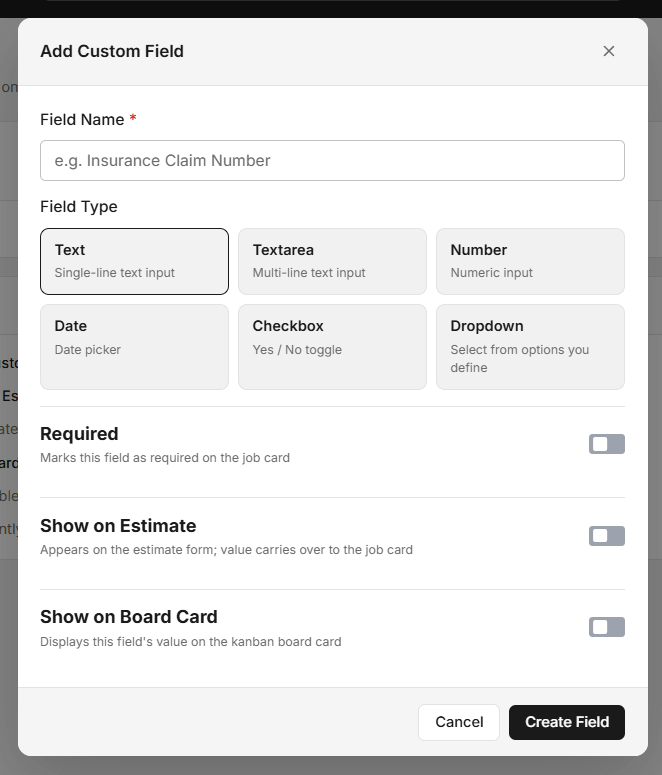
Click the + Add Field button in the top right corner. The Add Custom Field form will open.
Step 3 — Enter Field Name
Give your field a clear, descriptive name. For example: “Insurance Claim Number” or “Warranty Expiry Date”. This name will appear as the label on every job card.
Step 4 — Select Field Type
Choose the field type that matches the information you want to collect — Text, Textarea, Number, Date, Checkbox, or Dropdown. Select the one that best fits your needs.
Step 5 — Configure Field Options
Set up the following options for your field:
- Required — Turn this on if the field must be filled before a job card can be saved. This ensures your team never skips important information.
- Show on Estimate — Turn this on if you want the field to appear on the estimate form too. Values filled on the estimate will carry over to the job card automatically.
- Show on Board Card — Turn this on if you want the field value to display on your kanban board cards for quick visibility.
Step 6 — Click “Create Field”
Click the Create Field button and your new custom field is saved. It will now appear on the Custom Fields tab of every job card in your garage.
How Custom Fields Work on Job Cards
Once your custom fields garage job cards are set up, they appear automatically on every job card under the Custom Fields tab. Your staff simply fills them in when creating or updating a job.
Here is how the data flows through Autodots:
- Fields appear on the Custom Fields tab on every job card
- Fields marked Show on Estimate appear on the estimate form too
- Values filled on an estimate carry over to the job card automatically
- Fields with Show on Board Card display on kanban column cards
This means your team only needs to fill in the information once — and it flows through the entire job automatically.
Start using Autodots for free and grow your garage faster
–> autodots.io/partners
How to Manage Your Custom Fields
Autodots gives you full control over your custom fields garage job cards after they are created:
Edit a Field
Click the Edit button next to any field to update its name, type, or settings. Useful when your requirements change over time.
Enable or Disable a Field
Use the toggle switch to temporarily disable a field without deleting it. The field will no longer appear on job cards until you enable it again.
Delete a Field
Click the delete button to permanently remove a field. Important: deleting a field permanently removes all saved data for that field across all job cards. Use this carefully.
Examples of Custom Fields Garage Owners Use
Here are some real examples of how garage owners use custom fields garage job cards in Autodots:
- Insurance Claim Number (Text) — for garages handling accident repairs
- Next Service Due Date (Date) — remind customers when to come back
- Odometer Reading (Number) — record mileage at every service
- Pre-inspection Done (Checkbox) — confirm vehicle was checked before work
- Service Package (Dropdown) — Basic, Standard, or Premium
- Customer Special Notes (Textarea) — capture any special requests
Final Thoughts
Custom fields garage job cards in Autodots give your workshop the flexibility to capture exactly the information you need — nothing more, nothing less. Whether you run a small independent garage or a multi-location workshop, custom fields help you work smarter, reduce errors, and keep every job card complete and accurate.
Set up your custom fields today and give your team the tools they need to do their best work.
Ready to take your garage digital? Autodots helps garage owners manage jobs, invoices, inventory and customers — all in one platform. Register your garage free at autodots.io/partner
Looking to grow your garage business?
Want to learn more?
- How to Do Garage Marketing: Complete Guide for Garage Owners (Autodots)
- How to Accept Online Bookings with Autodots: Complete Guide for Garage Owners (2026)
- Garage Tax Management Software: How AutoDots Handles Tax Rates
- Garage Verification Documents: How to Get Verified on Autodots
- How to Use Garage Job Card Templates in Autodots to Save Time