
If you regularly send messages to customers, writing the same message again and again can waste a lot of time.
That’s why it is important to create marketing templates using Autodots. Templates help you save messages and reuse them whenever needed.
In this guide, you will learn exactly how to create marketing templates using Autodots step by step using the Templates section.
Table of Contents
What is a Marketing Template?
A marketing template is a reusable message that you can use in campaigns.
Instead of writing a new message every time, you can create one template and use it multiple times.
When you create marketing templates using Autodots, your work becomes faster and more organized.
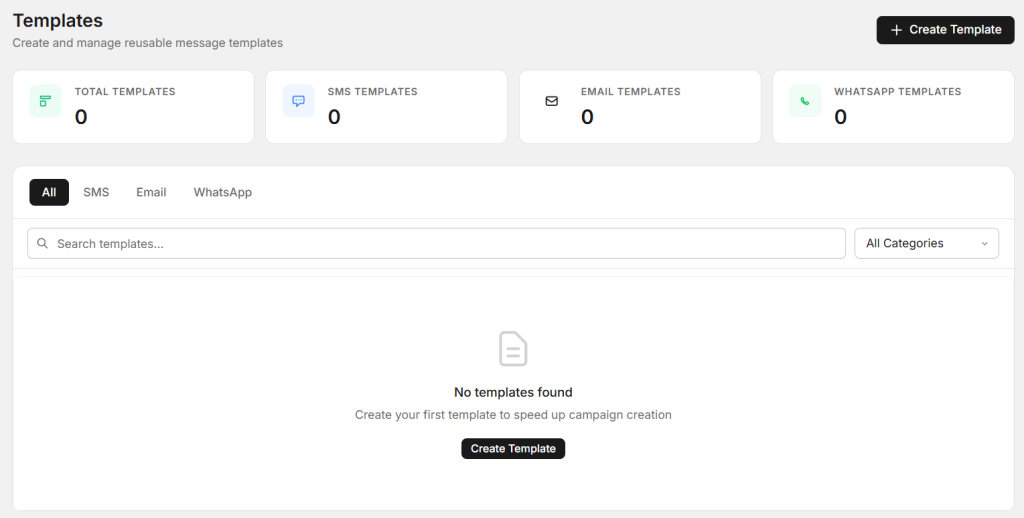
Where to Find Create Template Option
Go to Marketing → Templates section in your dashboard.
Here you will see the option “Create Template”.
Click on it to start creating your template.
Step-by-Step: How to Create Template
Step 1: Click on Create Template
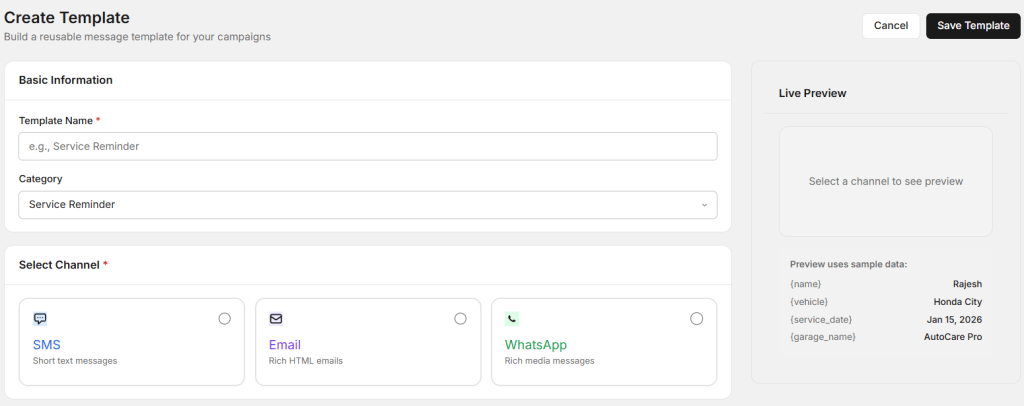
Start by clicking on the “Create Template” button.
This will open a new form where you can build your message template.
Step 2: Add Basic Information
Template Name
Enter a name for your template, for example: Service Reminder.
Category
Select a category like Service Reminder or any other relevant option.
This helps you organize your templates properly.
Step 3: Select Channel
Next, choose where you want to send your message.
- SMS – Short text messages
- Email – Detailed messages
- WhatsApp – Rich and engaging messages
Selecting the right channel is important when you create marketing templates using Autodots.
Step 4: Write Message Content
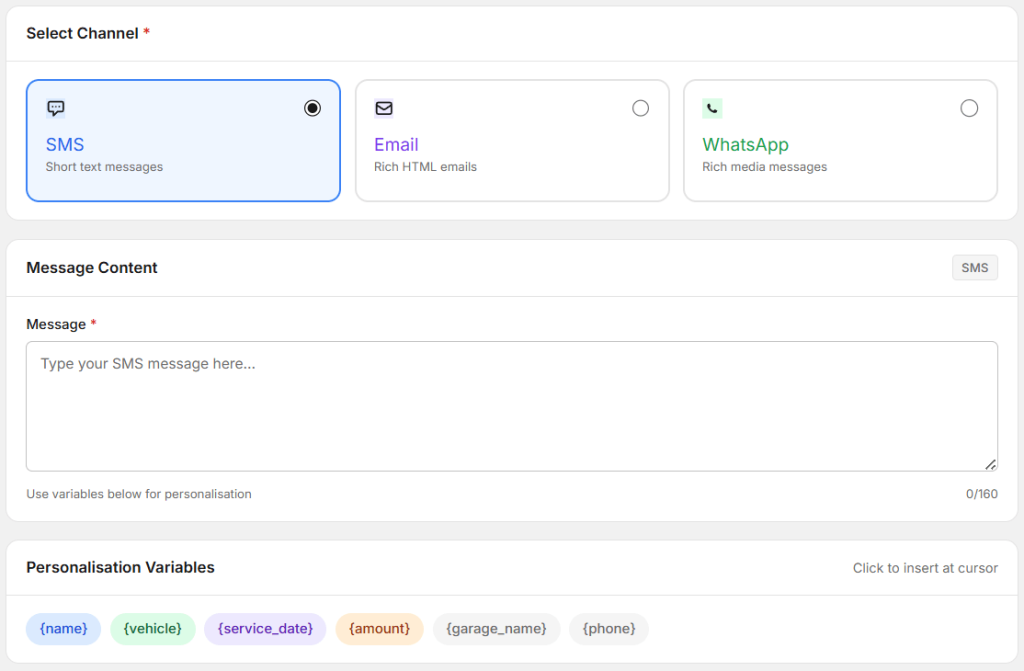
After selecting a channel, you can start writing your message.
This is where you define what you want to communicate to your customers.
Keep your message short, clear, and easy to understand.
Step 5: Use Personalisation Variables
Autodots allows you to use variables like:
- {name}
- {vehicle}
- {service_date}
- {garage_name}
These variables automatically change based on the customer.
For example, instead of writing a generic message, you can personalize it using customer details.
This is a powerful feature when you create marketing templates using Autodots.
Step 6: Check Live Preview
You can see how your message will look using the Live Preview section.
Sample data like Rajesh, Honda City, and service dates are used for preview.
This helps you make sure your message looks correct before saving.
Step 7: Save Template
Once everything is ready, click on “Save Template”.
Your template will be saved and ready to use in campaigns.
Start using Autodots for free and grow your garage faster
–> autodots.io/partners
Template Tips to Follow
Keep Messages Short
Short messages perform better and are easy to read.
Use Personalisation
Address customers by name to improve engagement.
Write Clear Messages
Avoid confusing language and keep your message simple.
Reuse Templates
Templates help you save time when creating campaigns.
These tips will help you better create marketing templates using Autodots.
Common Mistakes to Avoid
- Writing very long messages
- Not using personalisation
- Skipping preview before saving
Avoid these mistakes when you create marketing templates using Autodots.
How Templates Help Your Business
When you create marketing templates using Autodots, you can:
- Save time
- Send messages faster
- Maintain consistency
- Improve customer communication
This helps you run better marketing campaigns.
Summary
Now you know how to create marketing templates using Autodots step by step.
From adding basic details to writing messages and using personalisation, everything is simple and easy to manage.
Start creating your templates today and make your marketing faster and more effective.
Start now: Marketing → Templates → Create Template
Start using Autodots for free and grow your garage faster
–> autodots.io/partners
Looking to grow your garage business?
Want to learn more?