How to send campaign to customer with Autodots.
If you want to know how to send campaign to customer using Autodots, you are in the right place. In this complete guide, we will walk you through every step — from choosing your channel to hitting the Send button.
Whether you choose SMS, Email, or WhatsApp, Autodots makes it simple with its 3-step campaign flow.
Table of Contents
How the campaigns page works in Autodots
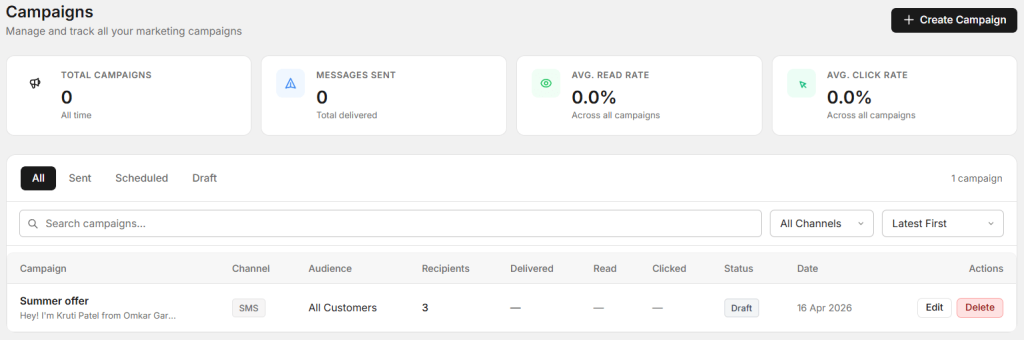
Once you send campaign to customer with Autodots, you can track everything from the Campaigns page. This page shows you all your campaigns in one place — sent, scheduled, and draft.
Top summary cards
At the top of the Campaigns page, you will see 4 summary cards:
- Total campaigns — total number of campaigns you have created so far.
- Messages sent — total messages successfully delivered to customers.
- Avg. read rate — average percentage of customers who read your messages across all campaigns.
- Avg. click rate — average percentage of customers who clicked a link in your messages.
Campaign tabs — All, Sent, Scheduled, Draft
You can filter your campaigns using the tabs below the summary cards:
- All — shows every campaign regardless of status.
- Sent — shows only campaigns that have been sent to customers.
- Scheduled — shows campaigns that are set to send at a future date and time.
- Draft — shows campaigns that are saved but not yet sent.
Edit or delete a campaign
In the Actions column, you will find two buttons — Edit and Delete. You can edit a Draft campaign before it is sent. Once a campaign is sent, you can only view or delete it.
How to send campaign to customer with Autodots Step-by-Step Guide
If you want to know how to send campaign to customer using Autodots, you are in the right place. In this complete guide, we will walk you through every step — from choosing your channel to hitting the Send button.
Step 1: Create a campaign — channel & audience
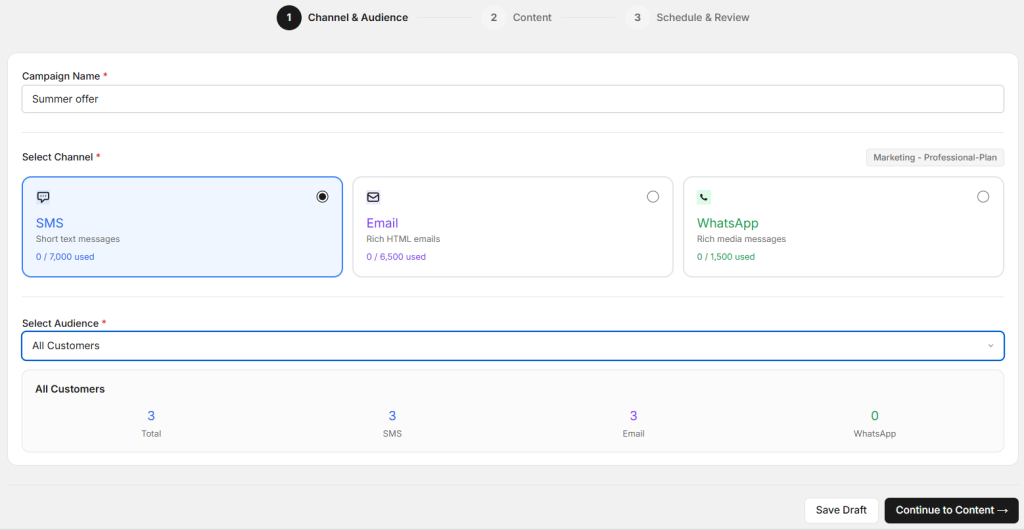
The first step to send campaign to customer is setting up your channel and audience.
- Go to your Autodots dashboard and click “Create Campaign.”
- Enter your Campaign Name (example: Summer Offer, Diwali Special, etc.)
- Under “Select Channel,” choose one of the following:
- SMS — for short text messages
- Email — for rich HTML emails
- WhatsApp — for rich media messages
- Under “Select Audience,” choose your target audience from the dropdown. You can select “All Customers” under System Audiences, or choose a specific segment.
- Click “Continue to Content →” to move to the next step.
Pro tip: Make sure your Campaign Name clearly reflects the purpose of your campaign. This helps you track performance later.
Step 2: Add content to your campaign
Once you know how to send campaign to customer and have selected your channel, you will land on the Content step.
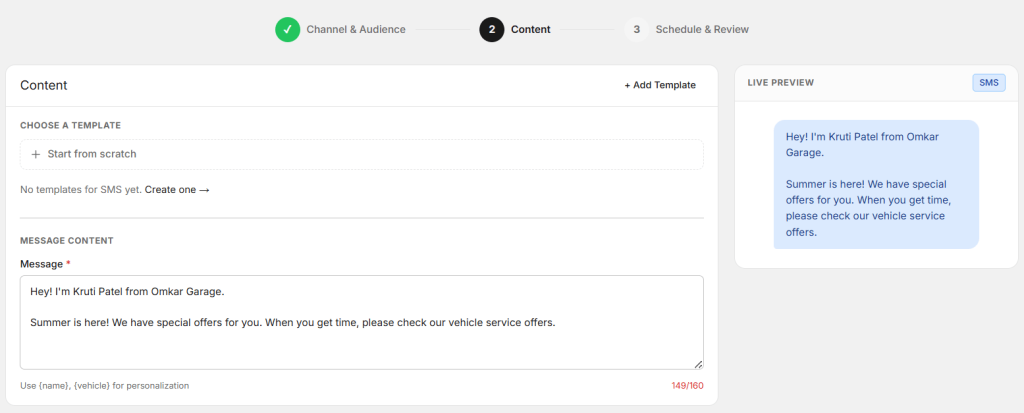
For SMS campaigns
- Under “Choose a Template,” you can either start from scratch or pick an existing SMS template.
- In the “Message Content” field, type your SMS message. You can personalize using {name} and {vehicle} tags. Maximum character limit: 160 characters.
- You will see a Live Preview on the right side showing exactly how your message will look to customers.
Example SMS message
“Hey! I’m Kruti Patel from Omkar Garage. Summer is here! We have special offers for you. When you get time, please check our vehicle service offers.”
- Once your message is ready, click “Continue to Schedule →.”
Step 3: Schedule & review your campaign
This is the final step when you send campaign to customer with Autodots.
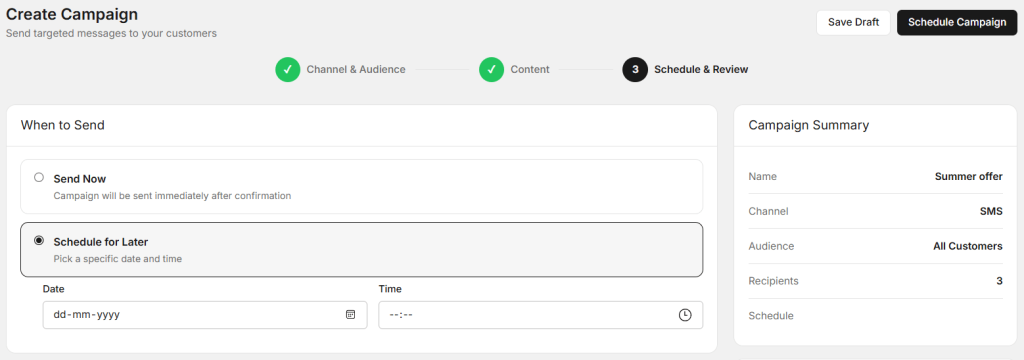
- Under “When to Send,” choose: Send Now (sent immediately after confirmation) or Schedule for Later (pick a specific date and time in dd-mm-yyyy format).
- Review the Campaign Summary on the right side — Name, Channel, Audience, Recipients, and Schedule.
- Check the Usage Limit section: Current Usage, This Campaign, and Total After Send.
- When everything looks good, click “Send Campaign” to launch.
Start using Autodots for free and grow your garage faster
–> autodots.io/partners
Tips to make your campaign more effective
Now that you understand how to send campaign to customer with Autodots, here are some tips to get better results:
- Always personalize your message using {name} — customers respond better to messages that include their name.
- Keep SMS messages under 160 characters for best delivery rates.
- Schedule campaigns during business hours for higher open rates.
- Use WhatsApp for rich media (images, buttons) to get better engagement.
- Test your campaign with a small audience first before sending to all customers.
Conclusion
Learning how to send campaign to customer with Autodots is quick and easy. Just follow 3 simple steps: set your channel and audience, add your message content, and schedule or send immediately. Autodots gives you full control over your customer communication.
Now that you know how to send campaign to customer with Autodots, go ahead and create your first campaign today!
Frequently asked questions
Q: How to send campaign to customer to all contacts at once in Autodots?
A: Select “All Customers” under System Audiences when creating your campaign.
Q: How many SMS messages can I send with Autodots?
A: The SMS channel supports up to 7,000 messages per campaign depending on your plan.
Q: Can I schedule a campaign for later in Autodots?
A: Yes. In Step 3 (Schedule & Review), select “Schedule for Later” and enter your preferred date and time.
Q: What personalization tags can I use in Autodots SMS campaigns?
A: You can use {name} and {vehicle} to personalize your messages for each customer.
Start using Autodots for free and grow your garage faster
–> autodots.io/partners
Looking to grow your garage business?
Want to learn more?