
Managing inventory manually can lead to stock errors, misplaced spare parts, and delayed repairs. That’s why many garages, motorcycle workshops, and auto repair shops are adopting barcode-based inventory systems. Learning How to Use Barcode Inventory Management Software can help your business improve stock accuracy, reduce manual work, and speed up daily operations.
Whether you’re managing a small workshop or a multi-location garage, this guide explains How to Use Barcode Inventory Management Software in simple steps.
Table of Contents
What is barcode inventory management software?
Barcode inventory management software is a digital system that lets you track spare parts and products in your workshop using unique barcodes. Instead of manually counting stock or searching through registers, you scan a barcode and the system instantly updates your inventory — showing how many units are available, what has been used, and what needs to be reordered. When you understand how to use barcode inventory management software correctly, managing hundreds of parts becomes as simple as a single scan.
How to use barcode inventory management software in Autodots — step by step
The steps below show exactly how to use barcode inventory management software in Autodots — from setting up your product to scanning it for instant stock updates.
Step 1 — Add a new product with full details
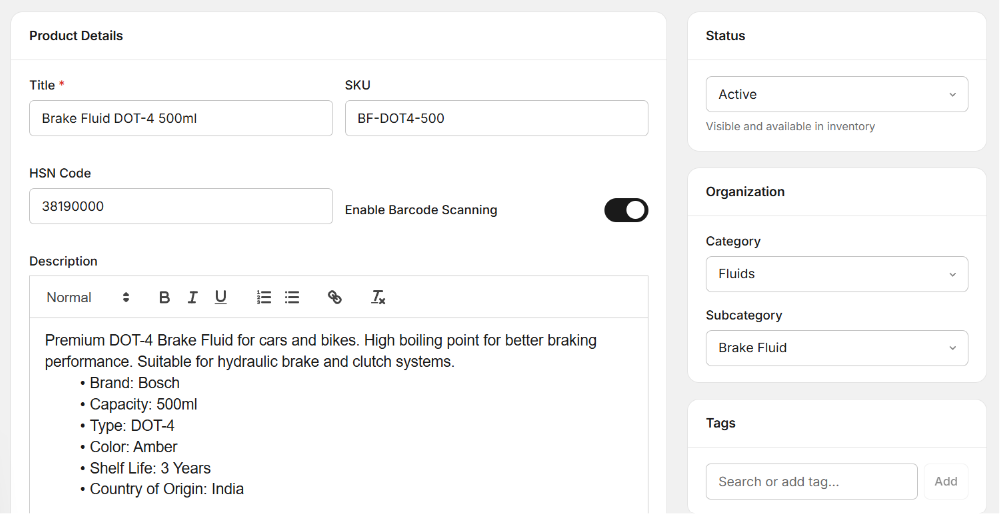
Go to the Inventory section in your Autodots dashboard and click Add Product. Fill in the following details carefully:
- Title — Enter the product name clearly (example: Brake Fluid DOT-4 500ml)
- SKU — Add a unique SKU code for internal tracking (example: BF-DOT4-500)
- Category and Subcategory — Select the correct category (example: Fluids > Brake Fluid)
- Description — Add product details including brand, capacity, type, colour, shelf life, and country of origin
- Status — Set to Active so the product is visible and available in inventory
Step 2 — Enter the HSN code and enable barcode scanning
This is a key step when learning how to use barcode inventory management software correctly in Autodots. Two important fields to fill in:
- HSN Code — Enter the correct HSN code for the product (example: 38190000 for brake fluid). The HSN code is automatically used on the GST invoice whenever this product is added to a job card — ensuring accurate and compliant billing every time.
- Enable Barcode Scanning — Toggle this ON. Once enabled, Autodots assigns a unique barcode to this product (example: AD-75615123) which you can scan directly from the inventory section for fast stock updates.
Once all details are filled in, save the product. It will now appear in your inventory with its barcode active and ready to scan.
Step 3 — Go to Inventory > Scan Barcode
This is where how to use barcode inventory management software becomes truly powerful in Autodots. From the left sidebar, navigate to Inventory > Scan Barcode. You will see a scan input field at the top of the screen.
- Use a barcode scanner to scan the product’s barcode — OR —
- Manually type the barcode number into the field and press Enter
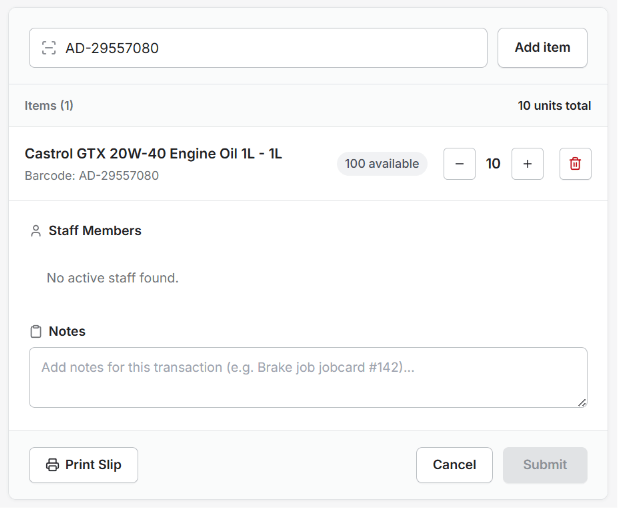
The product will appear instantly — showing the product name, barcode number, and units currently available in stock.
Step 4 — Update quantity and add notes
Once the product loads on screen after scanning:
- Use the + and − buttons to adjust the quantity being added or removed
- Assign a Staff Member to the transaction if needed
- Add a Note in the notes field — for example, “Brake job jobcard #142” — so you have a clear record of why this stock was used
Step 5 — Print slip or submit
When everything is confirmed, you have two options:
- Print Slip — Generate a physical slip for the stock transaction record
- Submit — Confirm the transaction and update inventory immediately
A green confirmation message will appear at the bottom of the screen — “Added: Brake Fluid DOT-4 500ml” — confirming that your inventory has been updated successfully.
Key benefits of using barcode inventory in Autodots
Once you know how to use barcode inventory management software in Autodots, these are the daily advantages your workshop gains.
- HSN code on every invoice — When a product with an HSN code is added to a job card, the code appears automatically on the GST invoice — no manual entry, no errors
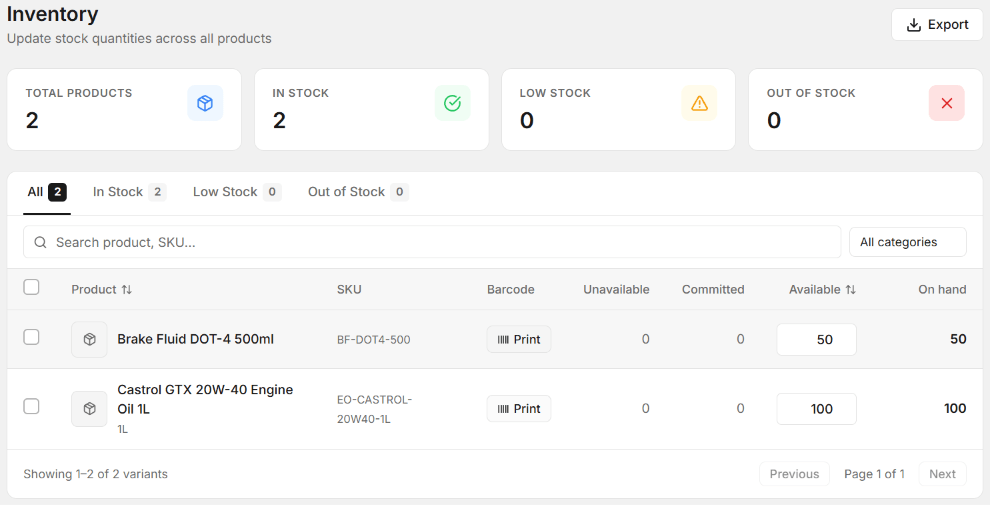
- Instant stock updates — Scan a barcode and stock levels update in real time across all devices
- Transaction notes — Every stock movement can be linked to a specific job card or note for complete traceability
- Print slip option — Generate a physical transaction slip for any stock update when needed
- Manual barcode entry — No scanner? Type the barcode manually and get the same result instantly
How Autodots makes barcode inventory simple for garage owners
Autodots is built for Indian garage owners who need a practical, no-complication system. The barcode inventory feature inside Autodots does not require any external software or complicated hardware setup. Add your product, enter the HSN code, enable barcode scanning — and you are ready. The entire workflow of how to use barcode inventory management software is built into the same platform you already use for job cards, billing, and customer management.
Who should use barcode inventory management in their workshop?
Any garage or workshop that stocks spare parts, fluids, filters, or consumables will benefit from knowing how to use barcode inventory management software. It is especially valuable for workshops handling high daily volumes, multi-location operations, or any owner who wants full visibility and control over parts usage without manual counting or paper registers.
Grow Your Workshop Online
Managing inventory efficiently is only one part of business success. Through the Autodots Partner Program, motorcycle workshop owners can improve online visibility, attract more local customers, and grow their business.
Frequently asked questions
Q: What is barcode inventory management software and how does it work in Autodots?
A: Barcode inventory management software lets you track parts and products using unique barcodes. In Autodots, you add the product, enter its HSN code, enable barcode scanning, then use the Scan Barcode section to update stock instantly by scanning or typing the barcode — no manual counting needed.
Q: What does the HSN code do in Autodots inventory?
A: The HSN code entered on the product is automatically included on the GST invoice whenever that product is added to a job card. This ensures every invoice is GST-compliant without any manual entry at billing time.
Q: Can I update inventory without a physical barcode scanner?
A: Yes. In Autodots, you can manually type the barcode number into the Scan Barcode field and press Enter — the product loads instantly and you can update stock the same way as if you had scanned it physically.
Q: Can I add notes when updating stock through barcode scanning?
A: Yes. The Scan Barcode screen includes a Notes field where you can add context for every stock update — for example, which job card the parts were used for. This gives you a complete, traceable record of all stock movements.
Conclusion
Investing in Motorcycle Inventory Management Software helps workshops maintain accurate inventory, reduce stock shortages, improve productivity, and provide faster customer service. From real-time stock updates and supplier management to reporting and business analytics, modern inventory software simplifies every aspect of spare parts management. With a complete platform like Autodots, motorcycle workshops can stay organized and continue growing successfully throughout 2026 and beyond.
For additional workshop technology insights and automotive industry updates, visit the Autodots Blog.